Short answers, in plain words.
Rather watch? Video tutorials, 18 short films of the main tasks.
Can’t find it? Write to hello@roundreply.com
Transcribe
Which meeting apps does it work with?
Any call, because Transcribe does not connect to a meeting app. It writes down only your voice, from your microphone, so the other people on the call are not written. A voice from a loudspeaker near the microphone can still be picked up faintly, so wear headphones for the cleanest transcript.
How does someone read along?
Press Share on the session and send the link. Whoever opens it signs in, with any account, and reads the transcript live on a phone or a computer. The link stops working when you press Stop sharing or Stop. If your tab reloads, closes or loses its connection, the reader sees that it is paused, and it carries on with the same link when you resume within 15 minutes.
Which languages does it transcribe?
English.
Sharing the live link, step by step: Share a live view of your call.
Install and sign in
Which computers does it run on?
Windows, 64-bit, on an Intel or AMD processor. There is no version of the app for Arm processors, a Mac or a phone. You also need an internet connection during a call, and about 400 MB of disk space. Without the app, a call can run in Chrome or Microsoft Edge, version 116 or later, on a Windows or Mac computer.
Windows says “Windows protected your PC”. What do I do?
Windows SmartScreen may stop the installer the first time it runs, because it is not code-signed yet. Download it only from this website, then:
- In the “Windows protected your PC” window, select More info.
- Check that the app named is the RoundReply installer you downloaded.
- Select Run anyway.
The installer puts RoundReply in your own user account, with no administrator rights, and adds it to the Start menu. If Smart App Control is on, Windows may block the installer and show no Run anyway button. We do not suggest switching Smart App Control off. You can use RoundReply in your browser instead, with no download: a call runs in Chrome or Microsoft Edge, version 116 or later, on a Windows or Mac computer, and Transcribe in Chrome or Edge on a computer. Write to hello@roundreply.com and say what Windows showed.
Do I need an account?
Yes. Calls in the app go through your RoundReply account, so you sign in before the first one. The first time you sign in creates the account, with Google or with your email address.
- Open the app. Until you sign in, it shows only the sign-in: Continue with Google and Continue with email.
- Choose one, and your web browser opens the sign-in page.
- Choose Continue with Google, or enter your email address and the 6-digit code that is sent to it. The first time, this creates your account.
- Your browser asks whether to open the app: choose Open. The app’s home opens, with Start, and at the top how many free sessions and hours are left.
The sign-in code does not arrive, or the app does not open after I sign in. What do I do?
Most often the code is in your spam folder, or your browser is waiting for you to let it open the app.
- No code? Look in your spam folder. Check too that the page’s “We sent a code to” line names your email address as you meant it. If it does not, choose Use another email.
- When the page’s “New code in” timer runs out, choose Send a new code. Or choose Use another email to go back, then Continue with Google.
- Signed in, but the app did not open? The page says: “Go back to RoundReply.” If your browser asks whether to open RoundReply, choose Open. If it asked nothing, choose Open RoundReply on that page.
If none of this works, write to hello@roundreply.com and say what the sign-in page showed.
How do I uninstall it?
In Windows Settings, open Apps, then Installed apps, find RoundReply and choose Uninstall. That removes the app and its Start menu entry. Your profiles, documents, saved sessions and settings are not removed: they stay in the app’s data folders, under your user account’s AppData folder, until you delete them yourself.
Can I add the dashboard to my phone’s home screen?
Yes. It then opens in a window of its own, like an app. It still needs an internet connection.
- On an iPhone or iPad, open the dashboard in Safari, then tap Share → Add to Home Screen.
- On Android or on a computer, open the dashboard and choose Install app, or Add to Home screen, from the browser’s own menu. Some browsers do not offer it.
In your browser
Which browsers can I use it in?
Chrome or Microsoft Edge, version 116 or later, on a Windows or Mac computer, with no download. Those are the browsers that can share a tab’s sound with a page and keep a small window on top of the meeting. A call in the browser runs in a page of your account’s dashboard: sign in, set up the call and press Start. On a phone, a tablet or another browser, the page says so and asks for nothing.
What does the page capture in a call in the browser?
Two sources, and only after you press Start: your microphone, and the sound of the meeting’s tab.
- Press Start. The browser asks for your microphone: allow it.
- It then asks which tab to share: choose the meeting’s tab on the “Chrome tab” or “Edge tab” page, tick “Also share tab audio”, and press Share. Without the tab’s sound the call does not start.
Your microphone is “You” and the tab’s sound is “Interviewer”: who spoke is decided by where the sound came from, never by voice. The page is given no other tab’s sound and no other app’s. Sharing a tab gives the page its picture too: nothing of it is kept, and only the one frame Screenshot takes, when you press it, is sent with that question.
Do keys work in a call in the browser?
Only while the page or its pop-out window has focus: there, Enter asks for an answer when you are not typing in a field. A page cannot hear keys pressed in another tab or app, so while the meeting is in front, use the buttons in the pop-out window.
What does a call in the browser answer from?
From the resume and the documents you chose for the session in your account, and from what you type in the page: before the call, and during it with Edit context…, which changes the job description, the notes and your confirmed facts from the next answer on. Each fact you add is one you confirmed by adding it; the company, the job description and your notes are background, never a statement about you.
Is a call in the browser saved?
Its words are not, with one exception: the transcript and the answers stay in the tab and are gone when you close it, and they are not saved to your account. The exception: when you open the call from an interview session of your account with Save transcript on, the questions your interviewer asked, as the page detected them, are sent to that session when the call ends, and they count toward the Question Bank, without your name or your answers, unless you turned that off in Settings, under Privacy. Your account keeps a record of the call itself, for billing: when it started and ended, the minutes it counted, how much sound each source sent and how much each answer used. Copy transcript copies the words first, if you want them. A call in the browser has no report. While you share it with Share live view, our service also keeps its transcript, line by line, until the share ends, and 7 hours at most.
Does the browser remember my setup?
Only if you tick “Keep this setup in this browser”, which is off at first. Then the company, the job description, your notes, your confirmed facts and your answer style are kept, not encrypted, in this browser’s storage on this computer, for the account you are signed in with, until you press “Forget it” or log out, or another account signs in there. Otherwise they are gone when you close the tab. The transcript and the answers are never kept in the browser.
What does a call in the browser cost?
What a call in the Windows app costs: it uses the same free sessions and hours, or your plan, by the same rules. Stop ends the call on your account at once. Closing the tab ends it too: the page tells your account as it closes, and if that does not arrive, your account ends the call by itself shortly after.
Where does the sound of a call in the browser go?
Through RoundReply’s relay to Speechmatics, which turns it into text; the Windows app sends its audio to Speechmatics without it. The relay, RoundReply’s server in Microsoft Azure, holds the sound in memory only while it passes it on, and writes none of it to a disk, a database or a log. For each answer, the question, recent lines and what you typed go to your account’s service, which has Azure OpenAI write it and writes none of it down.
Price and usage
What does it cost?
Free to start: 10 sessions of up to 10 minutes each, and 10 more after your first purchase. Then buy hours at USD 9.99 an hour, used by the minute, or go Unlimited: USD 99 a month, USD 249 for 3 months, USD 349 for 6 months or USD 399 for a year (USD 33.25 a month), within fair use of up to 120 live hours a month.
How do I buy a plan?
Hours and the Unlimited plan are bought in your account’s dashboard, after you sign in; the buttons of the pricing on this website lead there. You pay on the checkout page of Dodo Payments, the merchant of record, and what you bought appears in your account once Dodo Payments confirms the payment.
I paid, but my hours or plan do not show. What should I do?
What you bought appears on the Hours page of your account’s dashboard once Dodo Payments confirms the payment to RoundReply. Check these in order.
- Reload the Hours page.
- Check that you are signed in with the account you used to buy: hours and plans are added to the account that was signed in when you paid.
- Find the receipt Dodo Payments sent you by email: it has the order number.
If it still does not show, write to hello@roundreply.com from your account’s email address, with the order number on your receipt.
What happens when my free sessions run out?
A new call cannot start until you buy hours or the Unlimited plan, and the app says why. Your first purchase also adds 10 more free sessions. Your sessions, profiles and documents stay on your computer, and the synchronized copies stay in your account.
What does the fair-use limit on unlimited plans mean?
Unlimited plans have no hourly count, but they are not meant for running calls without end. Fair use: up to 120 live hours a month.
What uses a free session?
Starting a call. A free session is a call of up to 10 minutes. On the Unlimited plan a call uses nothing, within fair use (up to 120 live hours a month). A call that could not start uses nothing, and neither do saving a job, reading your past calls or Check audio. The top of the app’s home shows how many free sessions are left.
How are my hours used, and do they expire?
A call uses the minutes it runs, rounded up to the whole minute. Before the time set aside for it runs out, the app asks whether to go on. Hours never expire, and hours bought at different times add up. The Hours page of your account’s dashboard shows what is left, and its Usage history every call that was counted.
How do I get free hours?
Share your invite link, from the referral offer in your dashboard. When a friend signs up with it and makes their first purchase from their own device, they get 1 free hour and you get 2 free hours. The hours are added 7 days after that purchase.
Audio
What does it listen to?
Two sources, kept apart. Meeting audio is a copy of everything your computer plays through the Windows default output, which is how it hears the other side of a call. Your microphone is the second, and it is your own choice. There is nothing to choose for meeting audio: RoundReply cannot pick a different output device or limit the copy to one application.
Do I need a microphone?
No. Suggestions are written from the meeting audio. Adding your microphone puts your own words in the transcript of the session.
What does the audio check tell me?
Whether each source picks up sound on this computer. Run it before the call from Settings, under Audio, with Check audio: play something, and say a few words if your microphone is on. It listens for a few seconds, and nothing is sent, transcribed or saved. It does not show that your call’s audio is arriving. That shows only once the call is running: the meeting-audio meter should move while the other person speaks.
I can hear the interviewer, but RoundReply cannot. What should I check?
The call is almost always playing through a device that is not the Windows default output. Check in this order.
- Watch the meeting-audio meter while the other person speaks. If it does not move, the status beside it says so, for example “Capturing, but no sound has reached it yet”.
- In Windows sound settings, see which output device is the default. In the call application, make the call play through that device, not through one chosen only inside the call application.
- Check that the Windows output is not muted and its volume is not at 0.
- If you changed the default output during the call, end the session and start it again: a running session keeps the output it started with.
Your microphone has a meter of its own. If that one stays still, check that the microphone is not muted and that the right one is chosen.
Which call apps does it work with?
It listens to the sound your computer plays, so it is not tied to one call application: Google Meet, Zoom, Microsoft Teams, Webex or a call in any other app are all heard the same way.
Answers
Does RoundReply answer for me?
No. It shows a suggested answer on your screen, and you decide what to say. A suggestion is labelled as an AI draft, not said until you mark it.
How do I ask for an answer?
Press Answer on the toolbar when a question comes. You can also open the conversation from the live strip under the toolbar and press Answer on a line of it, or press Chat on the toolbar to type a question or say what to change. With the keyboard shortcuts switched on, Ctrl+Alt+Enter does the same as Answer from any application.
What is Auto Answer?
A switch on the toolbar of the Windows app, Auto. It is on for your first call, and each call after starts the way you left it. While it is on, it drafts a suggestion by itself, after a short wait, when it hears a clear question in the meeting audio. A question heard on your own microphone is never answered. With it off, you press Answer when you want a suggestion.
Auto Answer is on, but no answer appears. Why?
One of three things. The Auto button on the toolbar says On, Off or Paused.
- It is not on. A call starts with Auto the way you left it in your last call. Turn it on with Auto on the toolbar; it answers only questions asked after that.
- The question was not in the meeting audio. Auto answers only what the other side says. If the meeting-audio meter is still, see “I can hear the interviewer” above. A question heard on your microphone is left for you: press Answer.
- It was not heard as a finished question. Auto waits a moment in case the speaker carries on, and leaves a line that is cut off or is not clearly a question. Press Answer.
Auto also pauses when it reaches its limit, and leaves a question that arrives while a reply you asked for is being written.
Does it answer questions my resume doesn’t cover?
Yes. It writes a full answer to every question, including questions your resume doesn’t cover. So an answer can say things about you that aren’t in your resume, the documents you chose or your confirmed facts. Check that what it says about you is true before you say it.
Can a suggestion be wrong?
Yes. It is written by an AI model. It writes a full answer to every question, and an answer can say things about you that aren’t in your resume, the documents you chose or your confirmed facts. A general or technical explanation can be mistaken too. Read a suggestion, and check that what it says about you is true, before you rely on it.
Are there keyboard shortcuts?
Yes, in the Windows app, and they are on unless you turn them off. While a session is live, from any application: Ctrl+Alt+Enter asks for an answer; Ctrl+Alt+Shift+Enter takes a screenshot of the display under the pointer and sends it; Ctrl+Alt+Shift+A takes a screenshot of an area you select; Ctrl+Alt+Shift+Space opens or closes Chat; Ctrl+Alt+← and Ctrl+Alt+→ show the earlier and the later answer. While they are registered, those keys are not delivered to the application in front, and a key another program already holds is shown as taken.
What does the app not do yet?
It reads only the resume and the documents you add in the app, on its home (Add resume, and Documents in the Job sheet): not those kept in your account. A call in the browser reads those you chose for its session in your account, and has no saved session and no report. Suggest facts from a document and the report of a saved session work in the app, through your account, whenever your account could start a call.
Your resume and context
How does it know about my experience?
From what you give it first: your resume and the other documents you chose for the session, read line by line as you wrote them; the facts you typed or confirmed, yours and your profile’s; and the job description and notes you pasted, which are background and never a statement about you. Where they say nothing, the answer is still written in full, for someone with your experience in this role, so it can say things about you that aren’t in them: check that what it says about you is true before you say it.
What does confirming a fact do?
It lets a suggestion state that fact as true about you. Nothing joins your confirmed facts by itself: you type a fact or confirm it, and you can edit or remove it. Your resume and the documents you chose for a session need no confirming: an answer starts from what their lines say.
Where do my resume and documents go?
They stay in RoundReply’s data folder on your computer: the files you added and the text read from them. During a call, text from your resume and the documents you choose for the session is sent with the question to your RoundReply account’s service, which has Azure OpenAI write the suggestion. It holds that text in memory only, up to about 30 minutes after your last answer, and writes none of it down. Nothing uploads a document as a file.
Can I add something during the call?
Yes. More, Edit context… opens the job description, your notes and your confirmed facts without stopping the session. A reply being written at that moment is stopped, so ask again. The company, the resume and the documents are chosen before the call and cannot be changed from there.
Saving and privacy
Where does my data go during a call?
Two places, each for one job. The call’s audio goes to Speechmatics, which turns it into text: from the Windows app straight there, with a short-lived key your RoundReply account gives the app, so it does not pass through RoundReply’s servers; from a call in your browser through RoundReply’s relay, its server in Microsoft Azure, which holds it in memory only while it passes it on, and keeps none of it. For each suggestion, the question, recent lines of the conversation and your context (text from your resume and the documents you choose, your facts and your notes) go to your account’s service, which has Azure OpenAI write the draft, sends it back, and holds your context in memory only, up to about 30 minutes after your last answer. That service keeps no audio, transcript, question or answer: not in its database, its files or its logs. The one exception is a call you share with Share live view: that service then keeps its transcript, line by line, until the share ends, and 7 hours at most.
What does my RoundReply account keep?
The account’s service, in Microsoft Azure in the United States, keeps your email address and name, an identifier for you, when each call started and ended and the minutes it counted, and the saved sessions you chose to synchronize. You sign in with Google or with a code sent to your email: there is no RoundReply password, and RoundReply never sees your Google password. Its logs are kept for 30 days, its backups for 7 days, and its usage records for 24 months.
What is kept?
The Windows app keeps every call on this computer, with what was said and the answers it wrote, until you delete it. Delete a call from its page.
Can I see my sessions in my account?
Only those you choose to send. On a call’s page in the app (choose the call under Sessions, on the home), Sync this session… shows what would be copied to your account and asks you to confirm; nothing synchronizes in the background. A copy holds the transcript, the questions and the suggestions, never audio, screenshots, your notes, your documents or your facts. You can read it in your account dashboard. To remove it, use Remove the account copy… on the call’s page, or Copies in your account…, in the app; the dashboard does not remove copies.
What does deleting a session do?
It removes RoundReply’s copy of that session from your computer: the transcript, the questions and the suggestions. Your profiles, facts and documents are not touched. It does not reach the transcription or AI provider, and it does not remove a copy you synchronized to your account: that is a separate action.
Using it responsibly
Can other people see it when I share my screen?
No. The app always asks Windows to leave its windows out of screen sharing and screen recording, and an up-to-date Windows leaves them out of what you share; a Windows older than mid-2020 shows a black rectangle in their place. Not every call app has been tested, and a window that Windows itself opens, such as a file picker, is not covered.
When may I use it?
Use it where AI assistance and transcription are allowed. Whether an interview allows an assistant is the interview’s rule, not RoundReply’s.
Step-by-step guides
Installing the app, using it in a call, and keeping your data private.
Find your way around your dashboard
What each part of the dashboard is for, and where your hours, your settings and help are.
The sidebar
The sidebar on the left leads to every part of your account. Home, at its top, has the button to get started and lists your sessions.
More, under Home, opens in place and holds the other tools and pages your account has, each where your account has it.
On a narrow screen the sidebar is behind the Menu button at the top of the page.
Your hours
The hours card at the foot of the sidebar says what you have left. Its Buy button opens Hours, where you buy hours with Buy hours. With a plan, Hours also has Manage plan and Cancel plan.
On a narrow screen what you have left is at the top of the page and opens Hours, and Buy hours is in the Menu.
Help
Help, under the hours card, opens the help panel over the page.
- Search the help and its guides.
- Chat: questions answered by an AI assistant, and a way to reach a person.
- Ideas and bugs: the Feedback Hub, where you report a problem and see and vote on what others asked for.
Settings
Select your name at the foot of the sidebar to open Settings. On a narrow screen Settings is in the Menu.
- Sign out.
- Theme: light, dark or the same as your computer.
- Export your data, and Delete your account….
Install the Windows app and sign in
Download RoundReply for Windows, get past the SmartScreen warning, and sign in with your RoundReply account.
What your computer needs
A Windows computer, 64-bit, with an Intel or AMD processor, about 400 MB free, and an internet connection during calls. There is no version for a Mac, a phone or an Arm computer.
Download and open the installer
Open our website, go to Download and select Download for Windows.
The first time it runs, Windows SmartScreen may say “Windows protected your PC”. Select More info, check that the app it names is the installer you downloaded, then select Run anyway. Download it only from our website.
If Smart App Control is on, Windows may block the installer and show no Run anyway button. We do not suggest switching Smart App Control off.
Sign in
Open RoundReply from the Start menu. The first time, it shows only the sign-in: Continue with Google and Continue with email. Either one opens your browser, where you sign in with Google or with a code sent to your email, the same way you sign in to your dashboard. Then the app opens on its home, with Start.
Your account is told when you first take a step, such as signing in, adding a resume or starting a call, by name only: never what you typed, uploaded or said.
Add your resume and documents
Give the Windows app your resume and the documents for an interview, and confirm the facts a reply may state about you.
Upload your resume
On the home of the Windows app, choose Add resume, under Start (or Add a resume… in the Resume menu there). A PDF, a Word (.docx) file or plain text, up to 10 MB, is read by the RoundReply service on your computer and kept in your library there.
A resume gets a profile of its own, named after the file, for the facts about you. It stays chosen for your next calls; the Resume menu changes it.
Confirm your facts
Facts about your experience are suggested from the resume through your account, and each one waits until you confirm it. Open More (⋯) on the home, then Resumes and documents: the resume’s profile lists its facts, each with Confirm.
An answer about you is written from your confirmed facts and from the lines of the resume and documents chosen for the call. Every question gets a full answer, including questions none of them covers, so an answer can say things about you that aren’t in your resume, the documents you chose or your confirmed facts. Check that what it says about you is true before you say it.
Add other documents
In the Job sheet (Add job, under Start), Documents, Add files… adds notes, a portfolio or anything else for that interview, read the same way. A call can have at most 10 documents. A document you choose for an interview is read as information about you, line by line, like the resume: choose only documents about you that are true. The company and the job description are background about the role, never something about you.
More, Resumes and documents, on the home, holds your whole library: make a profile, review its facts, add, read or delete a document.
Add the job for an interview
Before the call, give the Windows app the company, the job description and your files for the interview.
The Job sheet
On the home of the Windows app, choose Add job, under Start (or New job… in the Job menu there). The Job sheet has three boxes, and each is optional: Company, Job description, where you paste the job posting, and Documents, with Add files….
The company and the job description are read as background about the role, never as something about you. Your resume is the one chosen under Start.
Save or Start
Save keeps the job and chooses it for your next Start, so you can prepare before the day. Start saves it and starts the call at once.
Saving a job captures nothing and sends nothing to a provider. A job stays in the Job menu, where Edit this job… changes it. After a call has used it, the Job line goes back to Add job.
How answers sound
The length and tone of answers, the code language and your instructions for the wording are in Settings (⚙ on the home), and every call uses them. Instructions are about the wording; they are not facts about you. Auto Answer is Auto on the toolbar during the call.
Use it during a call
Start a session when the call begins, get an answer to a question, and stop when it ends.
Start
Choose Start on the home when the call begins. The call starts at once, with the resume and the job written under Start. Recording details, under Start, says what is captured and sent once you press it.
Meeting audio is always captured, and your microphone too if My microphone is on in Settings. Recording or transcribing a conversation may require everyone’s consent where you are. Use RoundReply only in conversations where AI assistance is permitted.
The toolbar and the answer window
While the call is live, RoundReply is three small windows over your other windows: the toolbar (the audio sources and the status, Answer, Screenshot, Chat, Auto, fold, More and Stop), the live strip under it with the latest words heard, and the answer window, which says Waiting for a question until one is heard.
The live strip shows the newest words on one line. Clear empties the strip (nothing is deleted), and the expand button opens the whole conversation, where a question you are asked is offered with an Answer button beside it.
Get an answer
With Auto Answer on, a question heard in the meeting is answered by itself. You can also press Answer on the toolbar for the latest question, or Answer beside an offered question in the conversation. The answer card shows a spoken answer you can read as you talk, as a draft: it is never said for you.
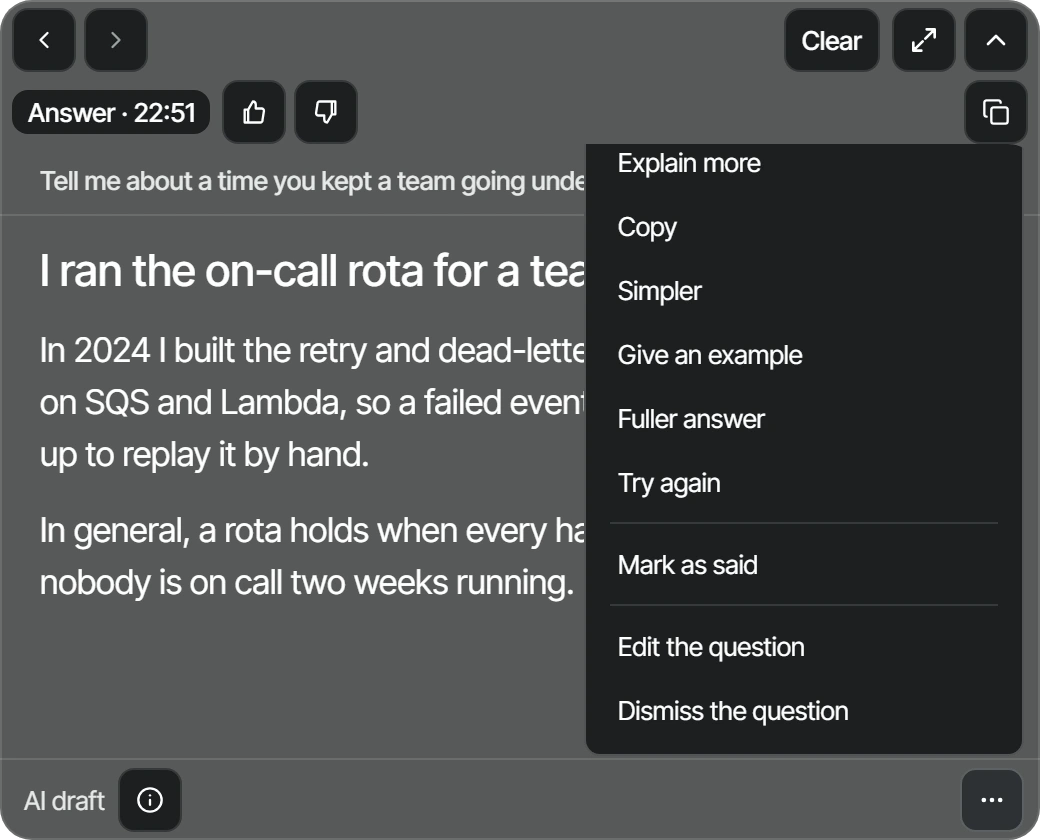
At the foot of the card, ⋯ opens Shorter, Explain more, Copy and the other requests for that answer. The ⓘ beside the words AI draft holds the details of the answer and Mark as said. Above the answer, ‹ and › go to earlier and later answers, Clear takes the answer off the card until the next one, and Copy copies it. A follow-up typed in Chat asks for something about it.
Stop
Choose Stop on the toolbar when the call ends. Capture stops, the panels close and the home comes back with Start, ready for the next call. The call is the first row under Sessions: choose it to read it again.
Use it in your browser
Run a live call from the dashboard in Chrome or Edge on a computer, without installing anything.
What you need
Chrome or Edge, version 116 or later, on a computer (not a phone or a tablet), and your call running in a tab of the same browser.
Set up the call
Open Sessions and choose Create session. Enter the company and the job description, choose Create and start, then Open in this browser. Change the setup, on the page that opens, holds the interview (company, job description, notes), the facts you confirm about yourself, and the answer length and tone. Auto Answer is off unless you switched it on.
Then choose Start. When the browser asks what to share, choose the tab of your call and switch on Also share tab audio, so the interviewer can be heard.
During and after the call
The page shows the transcript, the offered questions and the answers, with Answer, Screenshot and Stop. Pop out keeps a small window of it above your call.
The words of a browser call stay in that tab: copy the transcript before you leave the page if you want to keep it.
While you share a live view
Share live view is the one exception: while you share, your account keeps the lines said since you started sharing, so the people with the link can read them, and deletes them when sharing ends. No line is kept longer than 7 hours. The copies in our database backups are gone within 7 days after that. The guide Share a live view of your call says more.
Hear the call: meeting audio and your microphone
Which sounds the Windows app listens to, how to check them, and what to do when a source is silent.
The two sources
Meeting audio is what this computer plays through its default sound output: the voices of the call, from whatever call app you use. Your microphone is optional: turn on My microphone in Settings, under Audio. It is kept as a separate channel.
No call app is listed as supported: what matters is that the call’s sound plays through this computer’s default output.
Check before the call
In Settings (⚙ on the home), under Audio, choose Check audio: play something on this computer, and say a few words if My microphone is on. Each source’s level shows whether it picks up sound. It sends nothing anywhere, and nothing is captured for a call until you press Start.
When a source is silent
Play something in the call app, or ask the other person to speak, and look at that source’s level. If meeting audio stays silent, check that the call app plays through the same speakers or headset that Windows uses as its default output.
See a call in your dashboard
Send one call from the Windows app to your account, read its report in your dashboard, and remove the copy again.
Every call is kept
The Windows app keeps every call on this computer, with what was said and the answers it wrote, until you delete it. You choose which call to send, one at a time.
Sync this session
In the Windows app, choose the call under Sessions on the home to open its page, then choose Sync this session…. You confirm that one version of that one call goes to your account; nothing is sent in the background.
It then appears among your sessions in your dashboard, with its report when it has one.
Remove the copy
The call’s page removes the account’s copy too, with Remove the account copy…, and Copies in your account… lists them all. The call on your computer is not touched.
Auto Answer: answers that start by themselves
What Auto Answer does, when it answers, and when it pauses.
Auto on the toolbar
Auto Answer is on for your first call in the Windows app. Switch it on or off with Auto on the toolbar during a call; your next call starts the way you left it.

What it does
While it is on, a question heard in the meeting audio is answered by itself, by the same steps as Answer, as a draft labelled automatic. It is never said for you.
It writes one answer at a time and never interrupts an answer you asked for. After many automatic answers in a short time it pauses, and says so on the toolbar.
Keys that work from other applications
Answer, take a screenshot or open Chat while your call app is in front.
The keys
While a call is live, these keys work even when another application is in front.
- CtrlAltEnter
- Answer the latest question.
- CtrlAltShiftEnter
- Send a screenshot of the display under the pointer at once.
- CtrlAltShiftA
- Open the screenshot dialog to choose an area.
- CtrlAltShiftSpace
- Open or close Chat.
- CtrlAlt←andCtrlAlt→
- Go to an earlier or a later answer.
While they are on
Windows gives a key to RoundReply only while a call is live, and gives it back when the call ends. While it is held, that key does not reach the application in front. A key another program already holds is shown as taken. You can switch the keys off in Settings, under Keys.
Ask about your screen: screenshots and code
Send a picture of your screen with one click or one key, or check it first, and get an explanation with any code in a block you can copy.
Send the screen at once
During a call, choose Screenshot on the toolbar, or press its key. The display under the pointer is captured and sent at once, with the question “Solve or explain what is on this screen.” There is no preview: the picture leaves your computer as soon as you choose Screenshot or press the key.
Press it again no more than 5 seconds later to add that screen to the same question. Two pictures is the most for one question.
- CtrlAltShiftEnter
- Capture the display under the pointer and send it at once.
Check it before it is sent
To see the picture first, open More on the toolbar and choose Screenshot with options…, or press its key. Pick a display or select an area, check the capture and add your question. Nothing is sent until you choose Send.
- CtrlAltShiftA
- Open the screenshot dialog to select an area.
The answer
The explanation is written in the answer panel; code is in a block that scrolls and copies. Code in an answer is a suggestion and is never run.
The picture is sent for this session only, and is removed when the session ends or is deleted.
Choose how answers sound
Set the length and tone of answers, and change one answer with Shorter or Explain more.
The answer style
Every answer is written as spoken sentences. In Settings, under Answers, choose a length (Standard, Balanced or Detailed) for how full answers are, and a tone (Simple, Conversational or Professional), and add wording instructions if you want. Settings is ⚙ on the home, and More, Settings… during a call.
A change is saved at once and used from the next answer, in this call and the next ones. It never cancels or rewrites an answer already written.
One answer at a time
At the foot of an answer, ⋯ opens its actions: Shorter asks for a shorter version of it, Explain more asks for more detail, and Copy copies it.
Add a fact during a call
Change the job description, your notes or your confirmed facts while the call is live.
Edit context…
During a call, open More on the toolbar and choose Edit context…. It holds the job description, your notes and your confirmed facts for this call. The company, the resume and the documents stay as they were set.
A fact you add in Edit context… is one an answer can state about you from the next answer on. Nothing an answer says is ever added to your facts by itself.
Read a call again: its page, the report and its PDF
Open a call from Sessions, read what was said, ask for the report on how the call went, and save it as a PDF.
A call’s page
Sessions, on the home of the Windows app, lists your calls and the transcripts you imported, newest first. Choose one to open its page: what was said, then the AI drafts and the details, folded, each labelled apart from the words that were said.
The report
A report is written only when you press Write the report, under Report on the call’s page. It sums up the call, what worked, what to improve and three priorities, each tied to your own recorded words. Where your microphone was not recorded, it says “Not assessed” and why, instead of guessing.
Once it is written, Export PDF, under ⋯ on the call’s page, saves it as a PDF, to keep or print.
Open a live view on your phone or computer
Read a call’s transcript as it is written, from a link its host sent you, and set the page up so it is easy to follow.
Open the link
Open the link the host sent you in your browser, on a phone, a tablet or a computer. Sign in when the page asks (any account works, and signing in for the first time makes one); nothing needs installing. Use the whole link, with the part after “#”: that part holds the share’s id and its key.
The page is called Live view. The chip at the top says Connecting, then Live, and the words appear as people speak.
Read the transcript
Each turn is labelled Call, for the sound of the call, or Microphone, for the host’s microphone, with its time from the start of the share. The labels say where the sound came from, not who is speaking.
Words still being heard are shown faded at the end of the text, and the final words take their place. Words already written stay as they are, and nothing is put in above them. Latest question, at the top, shows the newest question: select it to go to its line.
Make it easy to read
The settings button at the foot of the page opens Reading settings, which holds them all, on a computer as on a phone.
Text size is S, M, L or XL; on a phone it starts at L. Paragraph size is the number of words after which a long turn starts a new paragraph, at the end of a sentence; where no sentence ends, it starts one after three times as many words. Theme is Light, Dark or System.
Scroll speed and Back to live
With Follow live on, the page scrolls by itself as new words arrive, smoothly, at the Scroll speed you choose. When it falls far behind, it catches up.
Scroll up to read something again and following pauses, and Back to live appears, with how many lines came meanwhile. The passage you are reading stays where it is, also when you change the text size. Choose Back to live, or scroll back to the end, to follow again.
Keep the screen on
Keep screen on, in Reading settings, asks your browser to keep the screen from going dark while the share is live. It is on at first. Where a browser cannot do it, the switch says so.
When it ends
Ended, at the top, means the share is over and no new words will arrive. A live view ends when the host stops sharing or the call ends, and at the latest 6 hours after the share started. The text already on the page stays until you close or reload it, and the page cannot get it back after that: choose Copy text first to keep it.
If the connection drops, the chip says Reconnecting or Offline. The text stays, and the page carries on by itself when the connection is back.
If the link does not work
“This link has ended or is not valid.” means that the share is over, or that the link is not whole. A live view link works only while its host is sharing: check that you have the whole link, with the part after “#”, or ask the host for a new one.
“This live view is full.” means that 10 people are reading it already, the most at once. The page tries again by itself.
What the page keeps
Live view keeps only your reading settings, in your browser’s storage, and nothing of the call. When you close the page, its text is gone from your device, unless you copied it. Your browser keeps the link in its history, as it keeps any address you open.
What is kept, and where
What the Windows app keeps on your computer, what reaches your account, and what is never stored.
On your computer
Your library (profiles, facts and documents) and the jobs you saved are files on your computer. The Windows app keeps every call on this computer, with what was said and the answers it wrote, until you delete it. Audio and screenshots are never saved.
Delete a call from its page: Delete session…, under ⋯, removes it and its report from your computer.
In your account
Your account keeps what you add or create in the dashboard, your plan, the calls it counted, your purchases, and the sessions you chose to sync from the app. The Privacy policy on our website says everything that is kept, why and for how long.
While you share a live view
While you share a call in your browser with Share live view, your account also keeps the lines of its transcript said since you started sharing, so the people with the link can read them. They are deleted when the share ends, and no line is kept longer than 7 hours. The copies in our database backups are gone within 7 days after that. No sound is kept.
Sent to the providers
During a call, the audio is sent to the transcription provider, and what an answer is written from to the AI provider that writes it. Delete in the app sends no deletion request to them.
Export your data or delete your account
Download a copy of what your account holds, or delete the account and its data.
Export your data
In Settings, Export your data prepares one file with what your account holds: your sessions, plan, calls, purchases and email choices. It is yours to keep.
Delete your account
In Settings, Delete your account… removes your account and its data after you type DELETE. It cannot be undone. Files the Windows app keeps on your computer are not touched by it.
Still stuck?
hello@roundreply.comOpen your email app
Say what you were doing, what you expected and what happened, and which version of Windows and of RoundReply you use.
Please do not send passwords, keys or anything from a real interview.
Couldn’t find what you were looking for?Talk to us